Packet Capture
Helping network engineers to troubleshoot any network related issues faster and within the Mist UI.
Role
UX designer
Team
UI Architect, 2 Product Managers, UI developer, API developer and 1 UX designer.
Deliverables
Research, creating designs, visuals, Prototypes
What would a network engineer do if there is something wrong with their network?
A network engineer would troubleshoot their network for any network related issues by capturing packets between two devices, and later analyzing the packets.
Problem
The packet capture feature in Mist UI was only designed to capture files to cloud. Users had to switch to a different tool to read the packets for troubleshooting any issue. The missing live PCAP feature was affecting daily operations of network engineers.
How might we help network engineers to perform the task of capturing packets and to keep networks operating safely and efficiently?
Solution
Show live packet stream, and allow the user to analyze the data in 3rd party tool if needed.
Outcome
We observed an increased in feature usage, and decrease in user tickets by 10%. Also, there are 3 major things I learned from the entire process.
Focus on main goal and avoid too many distractions.
Research can surprise you so ask as many questions you have.
Focus on minor details / micro interactions.
For confidentiality reasons I have omitted the actual values for these metrics.
The Approach
I worked closely with 2 subject matter expert and 1 SE who works closely with the end users to gain insights of the goals and needs of the customers.
Competitive analysis was done to understand what other competitors were offering that we lacked. I also looked at some tools like Wireshark and cloud shark that industry experts are using for troubleshooting
Competitive Analysis
I did see what our other competitors like Meraki and Palo Alto Networks are doing.
User Research
Understanding needs and pain points of various stakeholders by interview (talking to SEs and subject matter expert because of no access to the direct user).
Contextual Research
Deeply observing the task performed by subject matter expert.
Key Insights
01 / “95% of our users would prefer live packet capture as it’s faster and gives immediate result.”
02 / “Think about the non power users while designing the feature. How can I get to the root cause with few clicks.”
03 / “Focus on simplicity and usability, as interacting with huge amount of data set gets overwhelming.”
05 / “It is not efficient to switch between tools for a quick troubleshooting.”
04 / “I would like to be able to download PCAP at the end of the session, and also stream it to third party softwares.”
06 / Majority of the competitors are using old school command line interface for display of the information.
Considering clarity and scan-ability as an essential factor for the usability of this feature, I followed below rules to simplify the design of this complex features.
Prioritize the content with grouping information and reducing the visual complexity by combining elements.
Easy access of the data without impacting their flow of work
Enabling users to take the data to another tool where they can interact with it differently.
Layout
I started with sketching out various page layout ideas keeping in mind some of the points mentioned above.
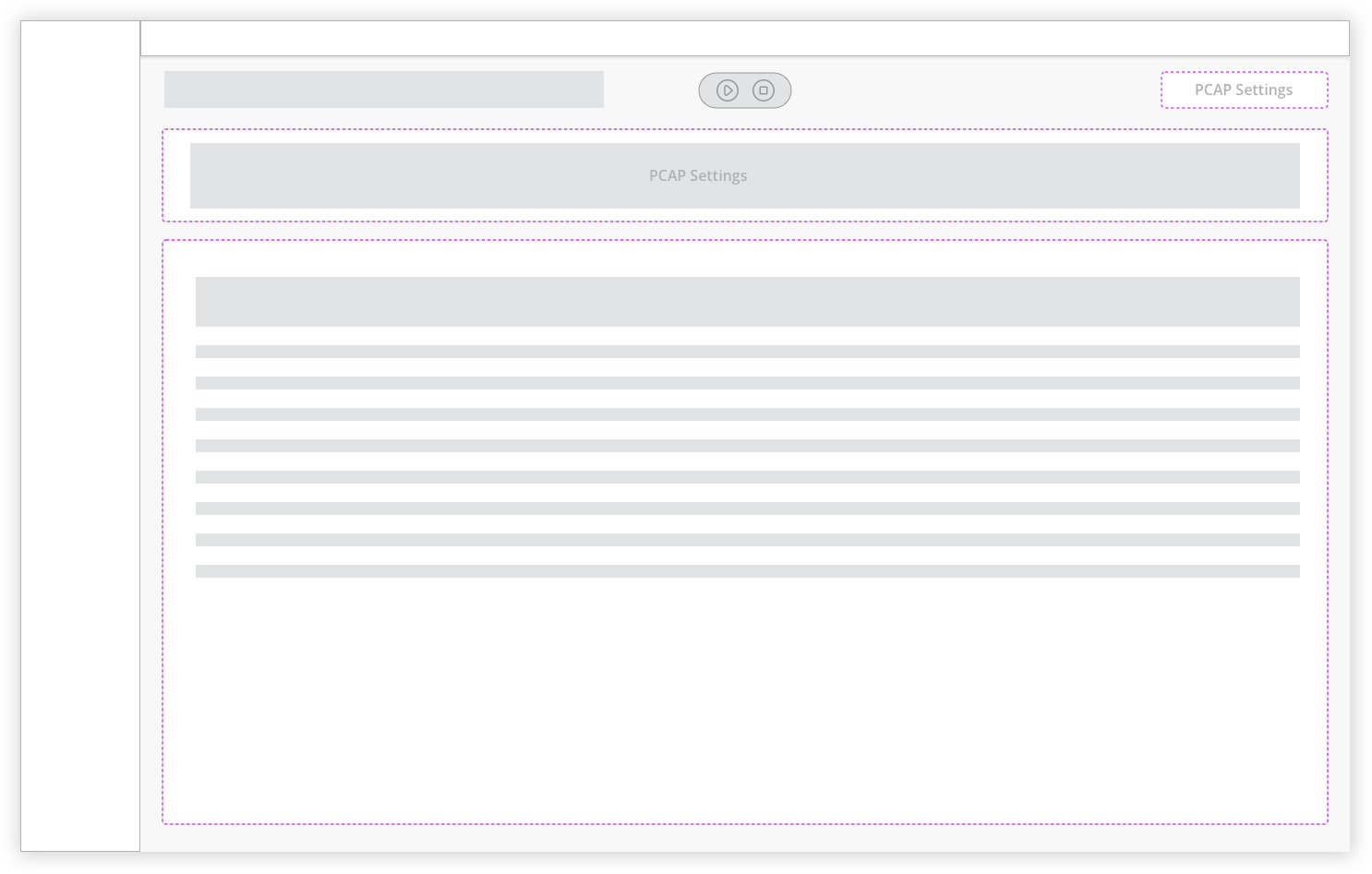
IDEA 1 -LEVERAGE THE EXISTING DESIGN
Don’t open the setting section on top of main table.
Don’t have multiple action buttons at different place and make users think.
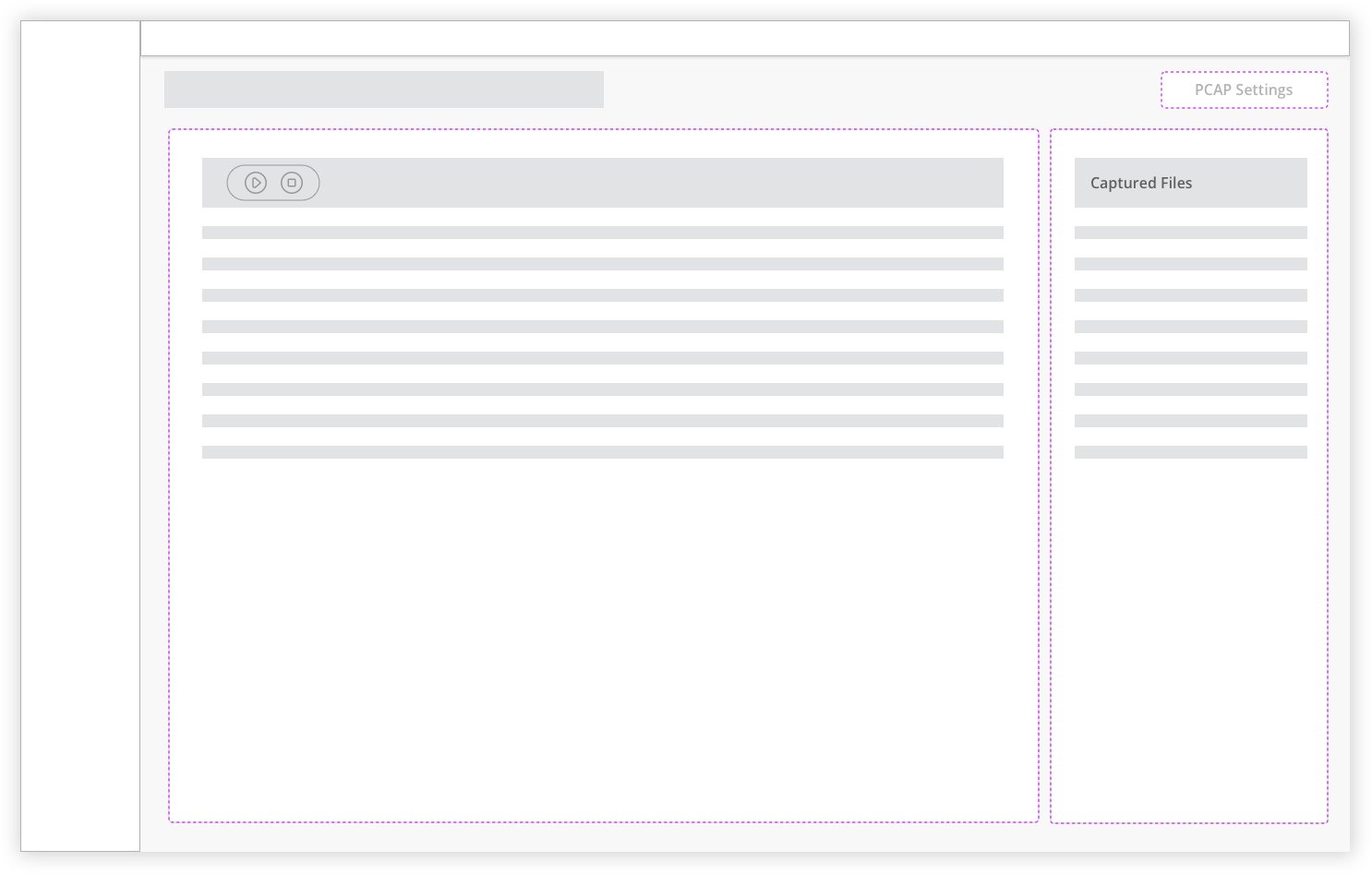
IDEA 2 - TWO COLUMN LAYOUT
Again don’t hide the settings when the capture initiates.
Keep it easily accessible to the users for making quick changes to the configuration
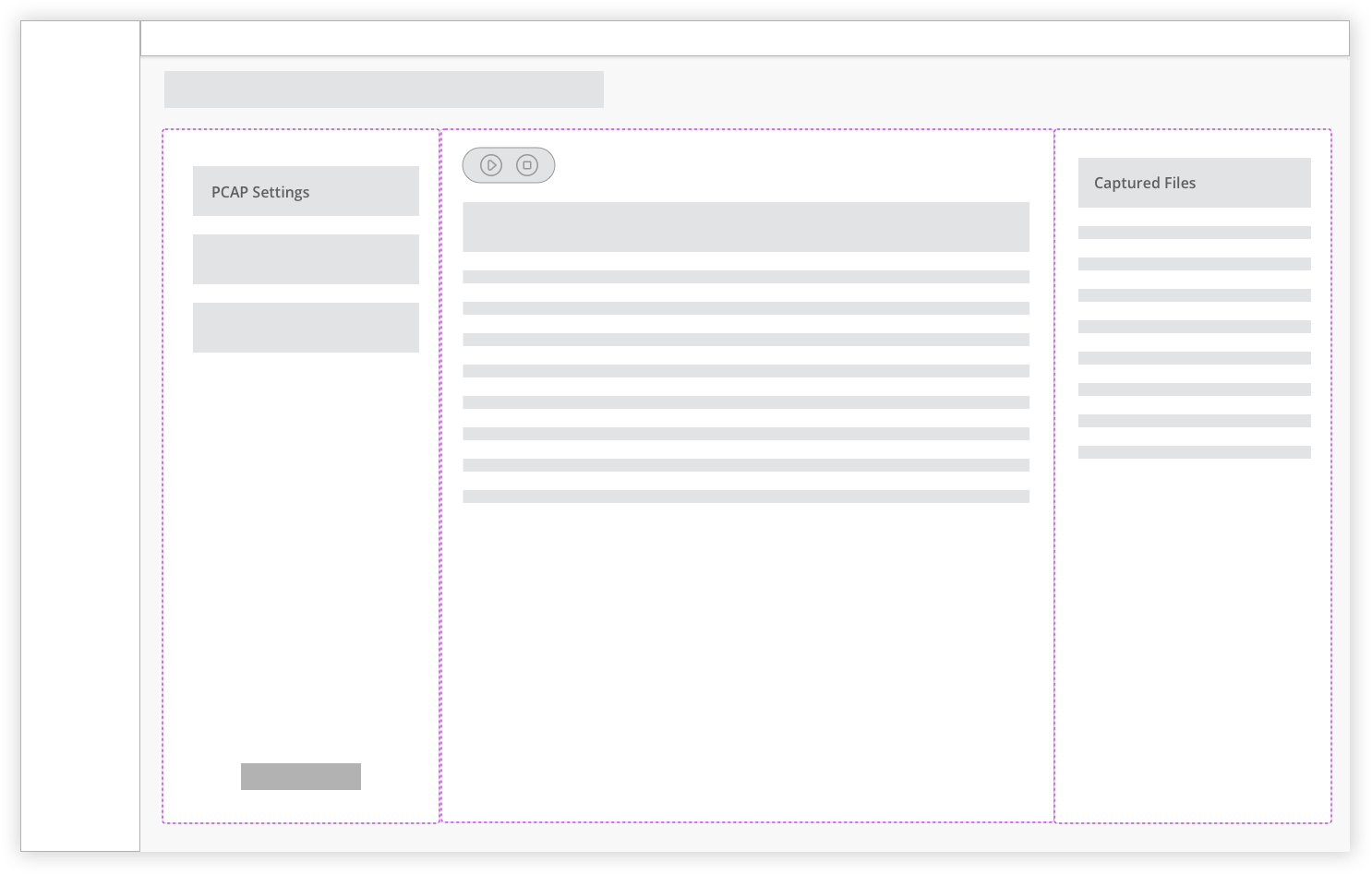
IDEA 3 - THREE COLUMN LAYOUT
Don’t make page too busy, have real state for the main table as it will have number of column while live streaming.
Have both the section collapsible (Main and Captured files).
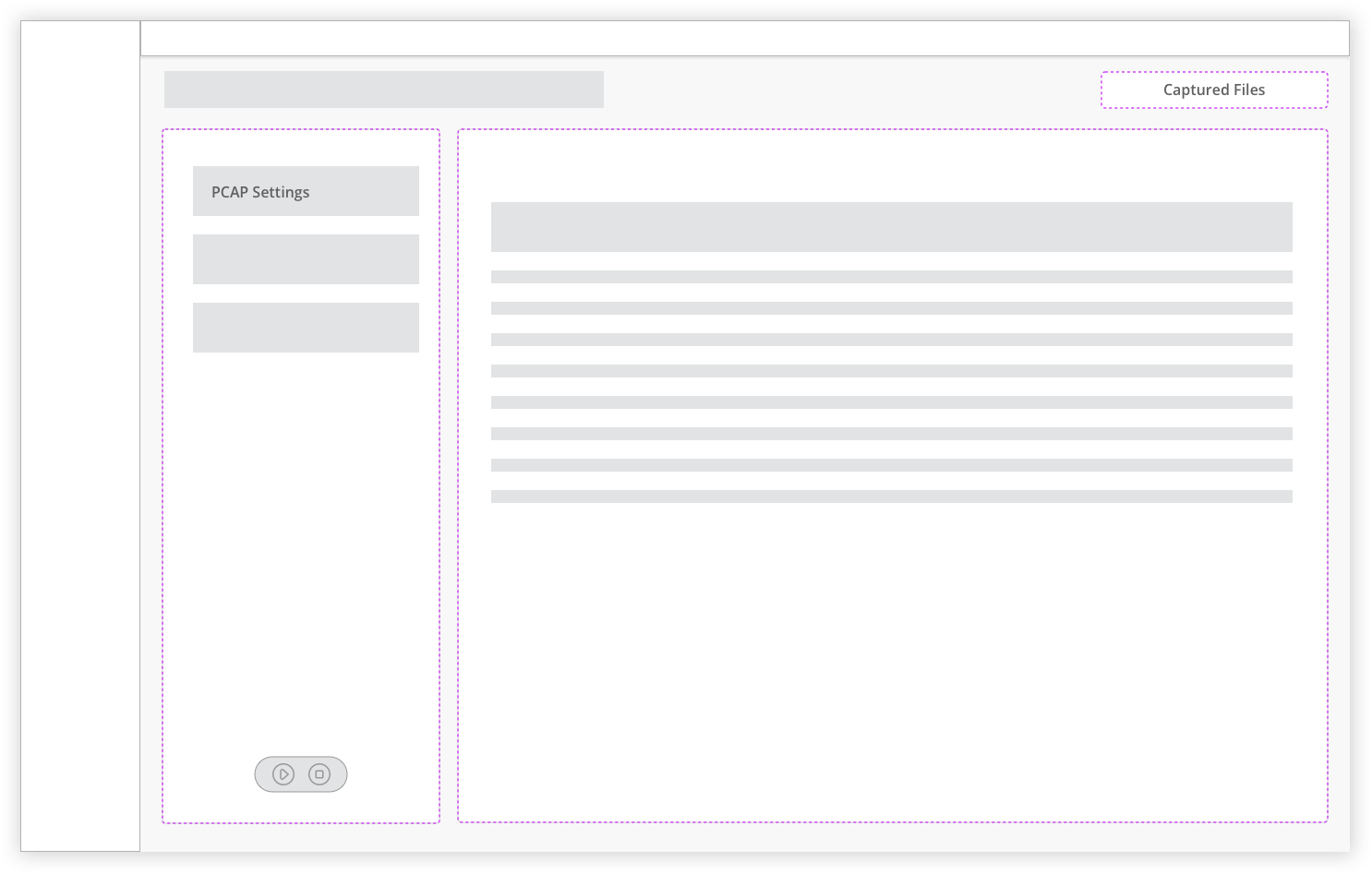
IDEA 4 - TWO COLUMN LAYOUT
Have Captured Files section open as every time user plays and pauses the file will be saved here.
Add easily scannable information.
Design Iterations
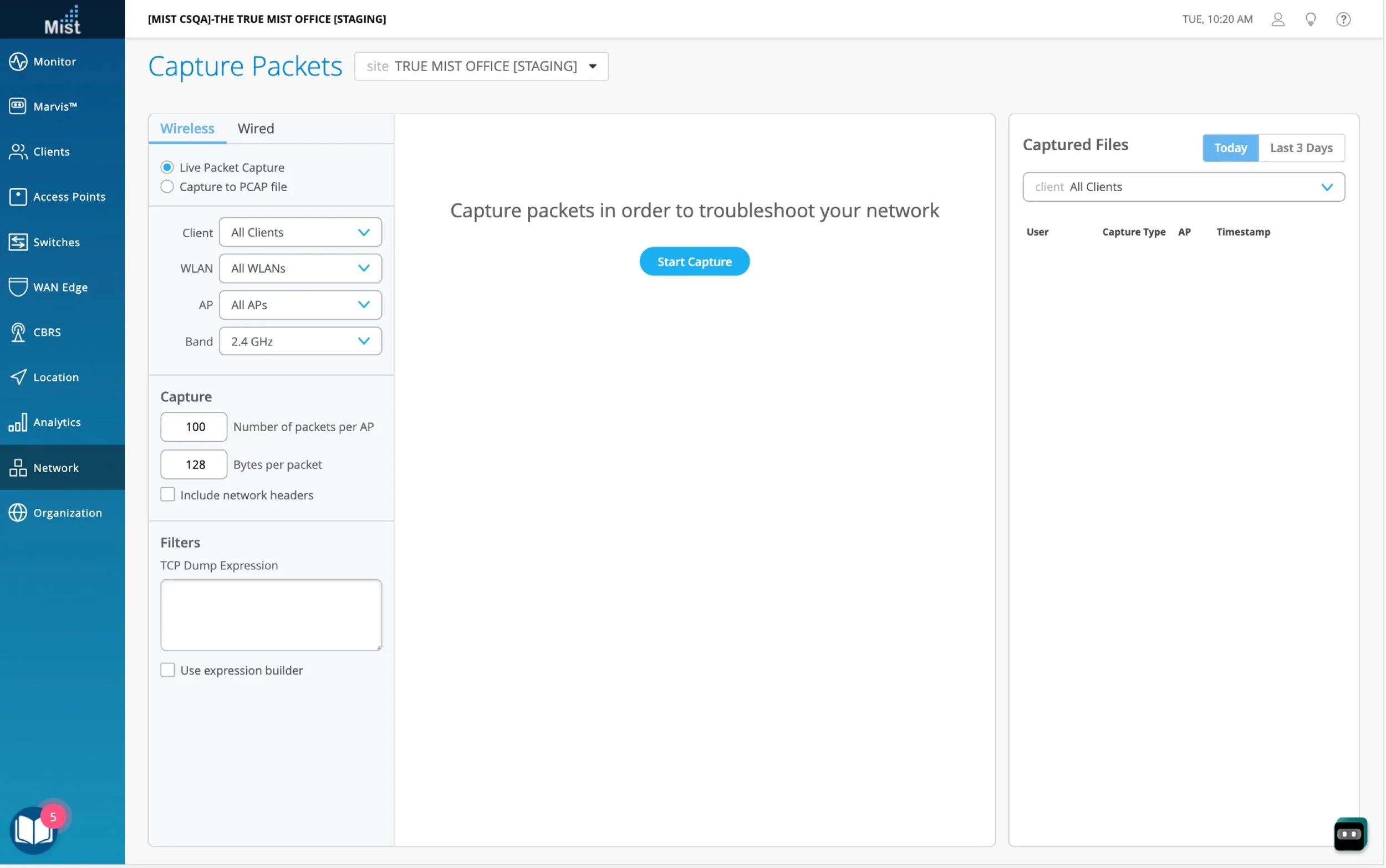
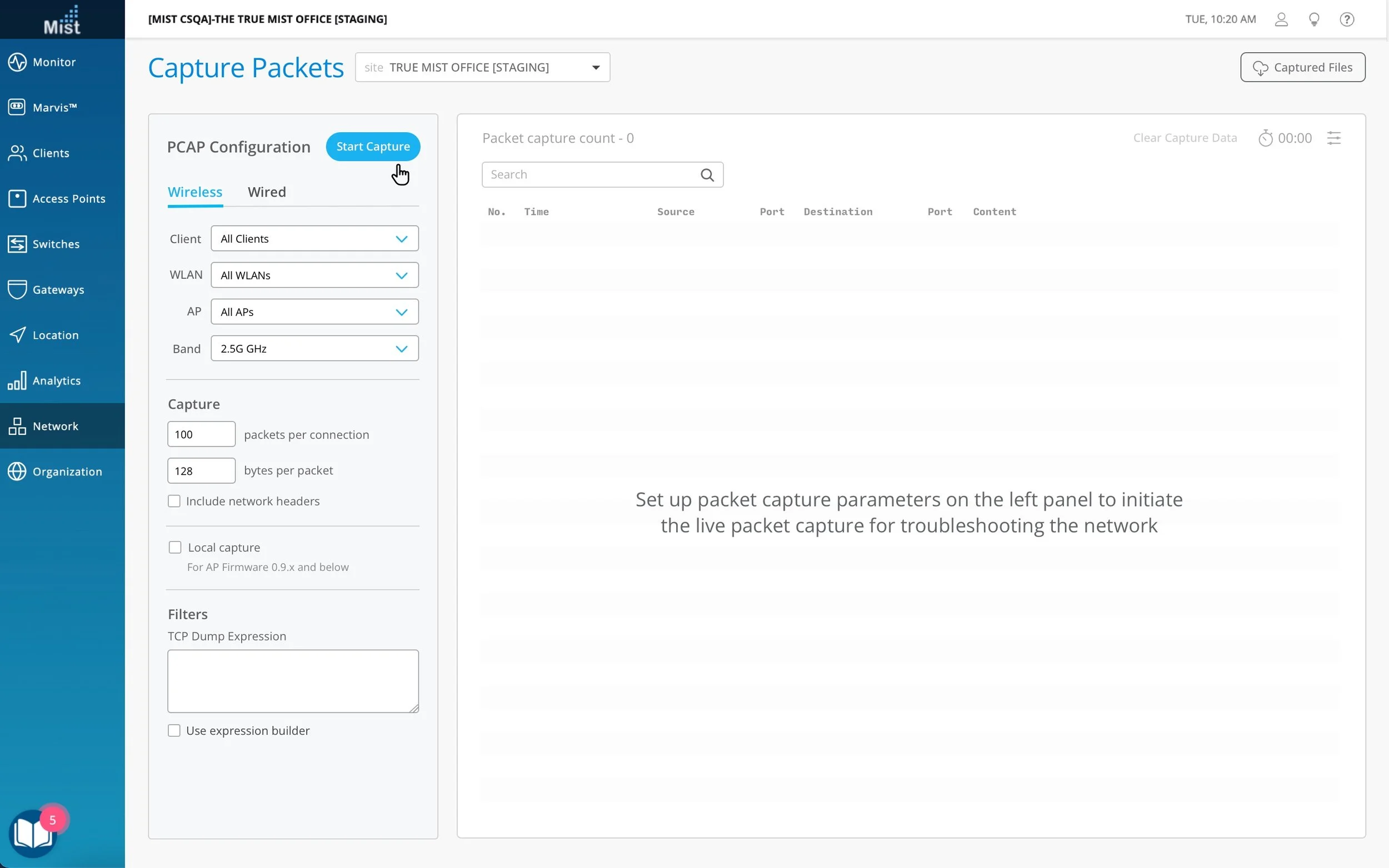
THE PROTOTYPES
Configure Capture parameters and initiate live packet capture
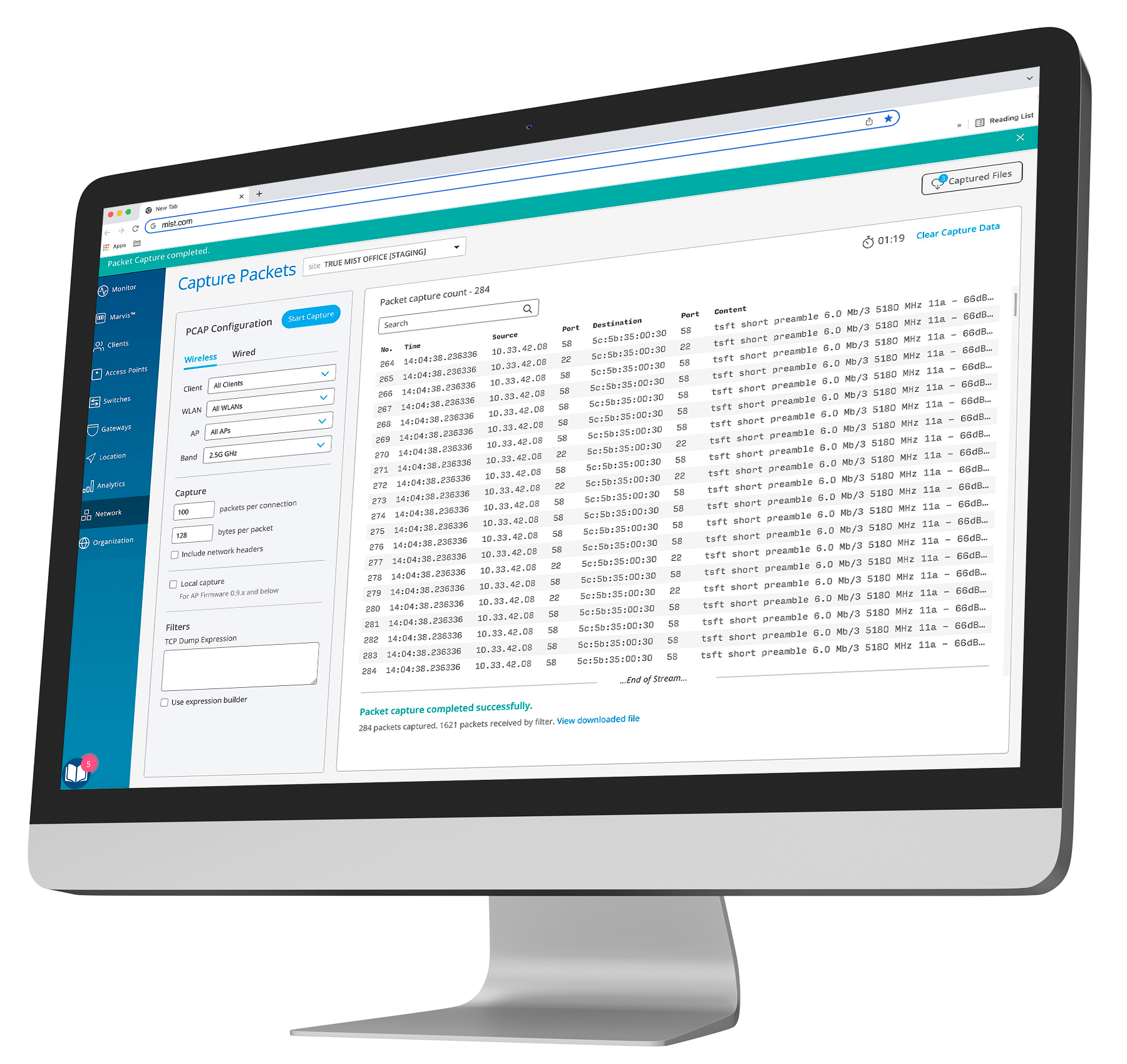
The fixed left panel is where the users can configure the capture parameters. The table shows the live streaming packets. The summary of the packet can be seen at the bottom of the table by clicking a row. All the required information is available on the single page for easy accessibility.
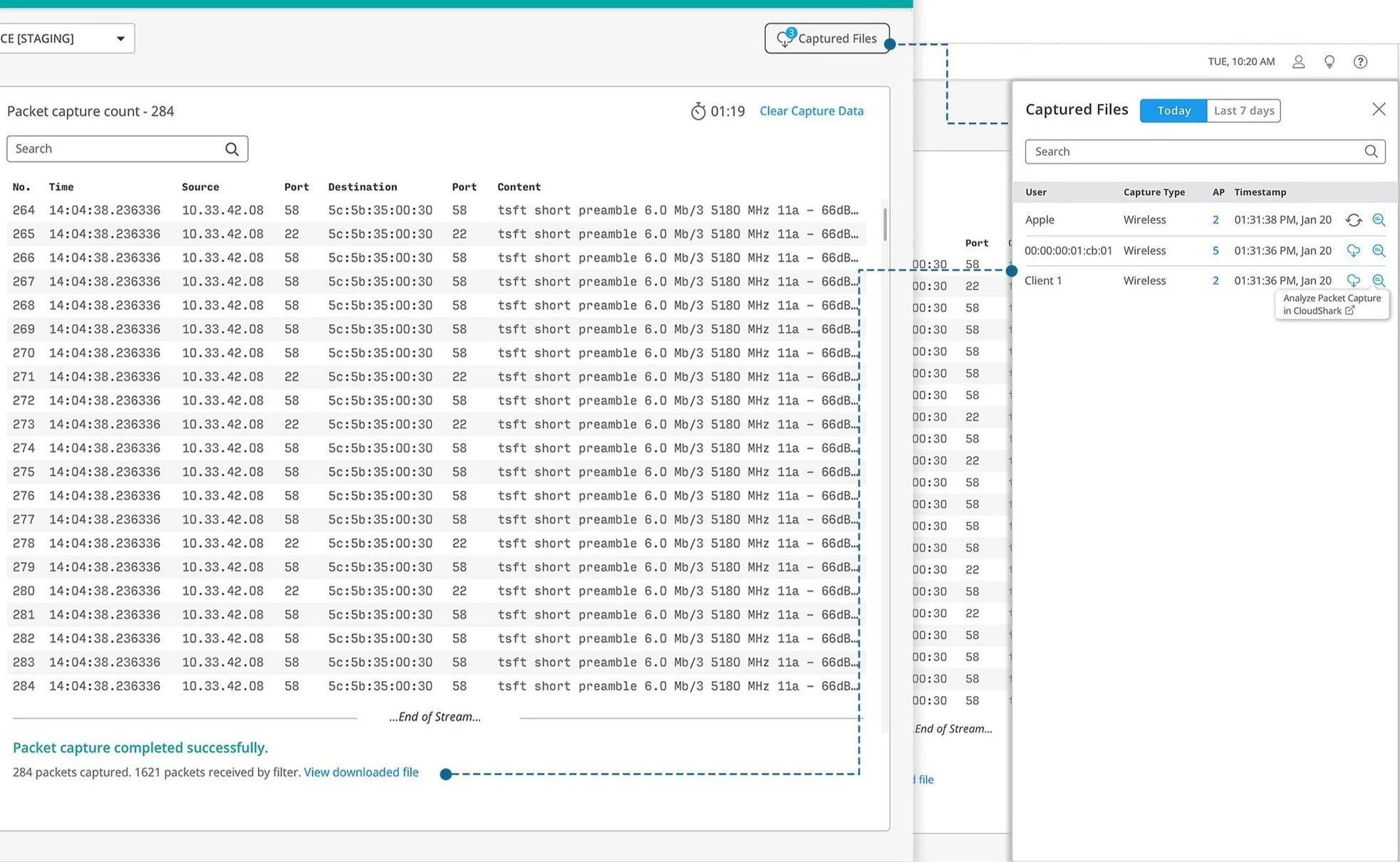
View the capture summary
View the summary once the capture is stopped or completed at the bottom of the screen. View captured files in the downloaded section which can be opened in other analyzing tool for deep troubleshooting.